
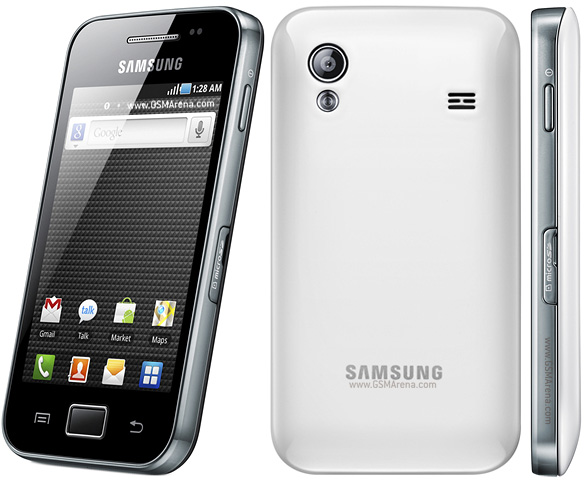
Jelly bean for Galaxy ACE:
How to Install a Custom ROM on Galaxy Ace s5830:
Getting Ready:
Well, if you ready to flash a Jelly Bean ROM on your Galaxy Ace, you need to do a few things before proceeding to flash the ROM. Since a custom ROM is directly related to modifying/replacing the system files, it requires root access and there fore you will have to root your phone before being eligible to any such action. If you have yet rooted your Galaxy Ace, head over to our handy tutorial first, then continue from the steps below: Root Samsung Galaxy Ace S5830
Among the other things you need to do before installing this ROM are:
- Get your Galaxy Ace fully charged.
- Backup all your contacts, messages and other important data. Backup your contacts, call-logs, messages, APNs, bookmarks, calendar, apps & games using these nice free apps.
- Turn on the USB Debugging mode on your device. Go to Settings> Applications>Development> USB Debugging> check the box.
- Download the ROM you like from the links below. Do not extract the zip file and copy it to the main directory of your device’s SD Card (not in a sub-folder).
- Download Google Apps for your phone from below (do not extract) and copy it to the same location as the ROM file.
- IMPORTANT: Download a Root File Manager app from the Google Play Store. Open the root file explorer and look for a folder called “efs” and backup the this folder to the External SD card of your phone. It will be even better if you backup this folder on your computer too. In fact, this folder contains your phone’s IMEI. In case you discover that your phones IMEI number has gone/lost, you can restore the “efs” folder back to its place and your problem will be fixed.
Installing a ROM on Galaxy Ace:
- First of all make sure that you have done all things mentioned above under preparations.
- Turn off your device and boot it into CWM Recovery Mode. Press and hold the Home+Power keys till the start up screen with “Samsung Galaxy Ace GT-S5830″ logo blinks for two times and you see a screen as shown below.
- In the Recovery Mode, use Volume and Power keys to navigate between the options and select them.
- Open “backup and restore” and backup your current ROM (important). When the backup is done go back to the main menu
- In the CWM Recovery Mode, scroll to “wipe data factory reset” option and select “Yes”.
- Then come back to the main menu and select “install zip from sdcard> choose zip from sdcard”. Now browse to the ROM file and select it. Confirm your choice by selecting “yes”.
- This will start the installation process and will take a few minutes to complete.
- When it is done, go back and install the GApps using Step 8.
- Return to the main menu again and select “reboot system now”. It might take a few minutes before your device reboots, so a little patience is required.
Download Google Apps:
In case you have any issue with Google apps zip package, download the following Google apps, copy them to your phone by connecting phone to computer using USB cable and install them.Google Play Store: Click Here
Gmail 4.2.1: Click Here
Gmail 4.1.2: Click Here
Google Maps: Click Here
Google Currents: Click Here
The Jellaxy ROM is a CyanogenMod 10 based custom ROM that lets you enjoy Android 4.1.1 Jelly Bean on your very Galaxy Ace S5830. Having installed this cool ROM on your phone your will be all good features like the Google Now, Project Butter, new Notifications system, lockscreen associated with Jelly Bean. Except for a few features like USB tethering, Wi-Fi tethering and Google Now (voice search) the ROM developer has been significantly successful in porting all other features in a working state.
Download Google Apps: Gapps-jb-2012.zip (for google apps) [CyanogenMod 10.0.x]


How to Install:
See at the beginning of the post for installation procedure. Here are are the steps to perform in CWM Recovery:
Boot into CWM
Wipe Data/Factory Reset
Go to ‘mounts and storage’ and ‘format /system’ (Double check that you have selected /system and NOT /sdcard)
click install zip from SD card-choose the downloaded file!!!
That's all click reboot and your phone will wake up into a new era of Android !!
(if you don't follow the steps mentioned above correctly it may cause damage to your phone).
SO DO IT UNDER YOUR OWN RISK!
